How to Miracast Any Phone to a TV or Monitor: Complete 2026 Guide
Miracast is a standardized wireless display protocol developed by the Wi-Fi Alliance that enables peer-to-peer screen mirroring without requiring an internet connection or Wi-Fi router. Often referred to as 'HDMI over Wi-Fi,' Miracast allows you to beam high-definition video and surround sound directly from an Android smartphone, tablet, or Windows laptop to an external TV, projector, or portable monitor.
In this updated 2026 technical guide, we break down how Miracast works, compare it against Apple AirPlay and Google Chromecast, and explain how to set up wireless casting from Android phones and Windows 11 computers.

How Does Miracast Work?
Unlike Chromecast or AirPlay (which often stream content via a shared home Wi-Fi network or cloud servers), Miracast creates a direct Wi-Fi Direct (P2P) wireless connection between the transmitter (your phone or PC) and receiver (your TV or monitor wireless adapter). Video frames are encoded in real-time using H.264 / H.265 compression up to 1080P resolution at 60 frames per second, transmitting audio channels simultaneously with minimal latency.
Miracast vs. AirPlay vs. Chromecast Comparison

Step-by-Step: How to Use Miracast with a Portable Monitor
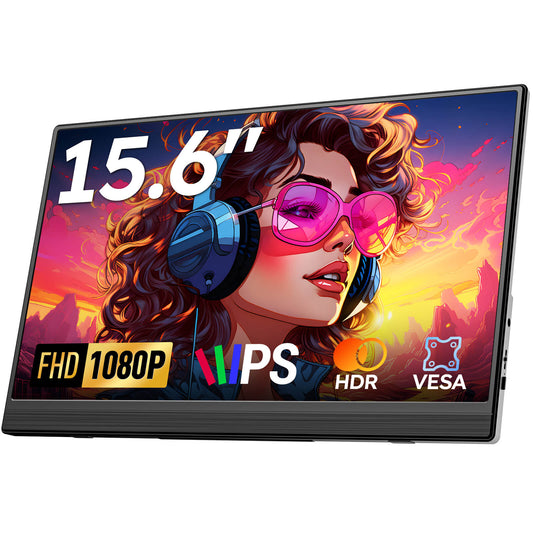
Most portable monitors prioritize physical ultra-low latency inputs (USB-C and Mini HDMI). To cast wirelessly to a Favpista 15.6" Portable Monitor, follow these steps:
- Plug a certified Wireless HDMI Display Dongle into the monitor's Mini-HDMI port (using the included Mini-to-Standard HDMI adapter).
- Connect the wireless dongle's USB power cable into the monitor's USB-A port or a 5V/1A power supply.
- On your Android phone, swipe down the quick settings shade and tap Smart View (Samsung), Cast, or Wireless Projection (Huawei).
- Select the display dongle SSID from the device list. Your phone screen will mirror instantly.
How to Mirror from Windows 11 via Miracast
- Press Windows Key + K on your keyboard to open the Cast panel.
- Select your Miracast-compatible TV, PC, or wireless monitor adapter from the list.
- Choose whether you wish to Duplicate your desktop, Extend as a secondary workspace, or display on the second screen only.
Wired vs. Wireless: When is Direct USB-C Better?
While Miracast is convenient for sharing photos and slideshows from across the room, wireless compression introduces 50ms–150ms of input lag and consumes phone battery quickly. For intensive productivity, coding, or gaming, a direct Full-Featured USB-C connection to a Favpista 14.1" Touchscreen Lapdock is far superior—providing zero latency, full touchscreen responsiveness, and integrated desktop modes like Samsung DeX.
Recommended Favpista Displays for Mobile Work
- Favpista 14.1" Touchscreen Lapdock with 10800mAh Battery: Turns your phone into a complete laptop workstation with keyboard, trackpad, and internal battery.
- Favpista 15.6" FHD 1080P Plug & Play Portable Monitor: Crisp 1080P IPS display with dual USB-C ports and Mini-HDMI input for wired or wireless adapters.
- Favpista 14.1" 16:10 FHD 1200P Triple Screen Extender: Panoramic dual-screen expansion for traveling professionals.
- Browse All Favpista Portable Displays: Explore our full collection of versatile external monitors.
FAQ
Q:Do I need a Wi-Fi router or home internet to use Miracast?
No. Miracast uses Wi-Fi Direct technology to establish a direct point-to-point wireless connection between your phone and display receiver. No router, internet connection, or data plan is required.
Q:Can I mirror an Apple iPhone using Miracast?
iPhones natively support Apple AirPlay rather than Miracast. However, multi-mode wireless display adapters support both AirPlay and Miracast protocols, allowing iPhones to mirror wirelessly to any HDMI monitor.
Q:Why does Miracast video sometimes stutter or lag?
Wireless interference from crowded 2.4GHz networks or excessive distance can cause packet drops. Ensure your phone is within 10–15 feet of the display and switch to 5GHz Wi-Fi channels if your adapter supports it.
Q:Does Miracast support touchscreen interaction?
Standard Miracast does not transmit touchscreen HID data back to the phone. For full 10-point multi-touch and desktop mode navigation, a direct USB-C cable connection is required.
Q:Can I extend my Windows desktop using Miracast instead of duplicating?
Yes. Press Windows Key + P and select 'Extend'. Windows will treat the Miracast display as a fully functional wireless secondary monitor for dragging and dropping windows.