How to Connect a Smartphone to a Portable Monitor: 2026 Complete Guide
Modern smartphones pack computing power rivaling desktop computers from just a few years ago. By connecting your phone to a portable monitor, you can instantly transform a handheld device into an expansive workstation for reviewing spreadsheets, writing documents, editing photos, or playing mobile games on a big screen.
Whether you use an iPhone 15/16 with USB-C, an older Lightning device, or an Android flagship with desktop capabilities like Samsung DeX or Huawei EMUI Desktop, this 2026 guide walks you through the 3 proven connection methods.

Method 1: Direct Single-Cable USB-C Connection (Zero Lag)
The cleanest and most efficient setup requires only a single Full-Featured USB-C to USB-C cable:
- Supported Phones: iPhone 15 & 16 series; Samsung Galaxy S-series (S20 through S25) and Note/Z Fold series; Huawei Mate and P-series; Google Pixel 8/9; OnePlus flagships.
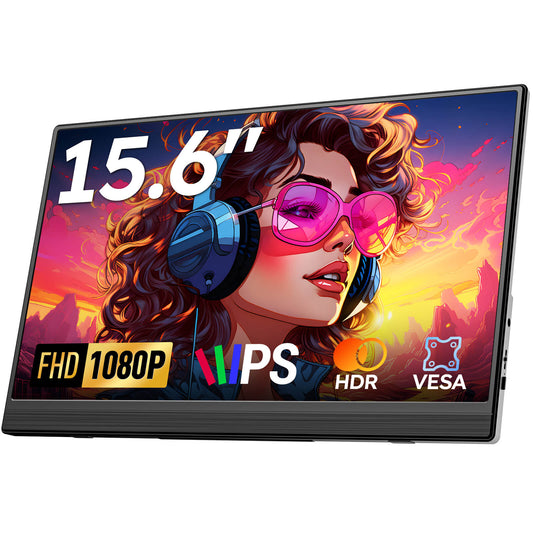
- Supported Monitors: Plug-and-play displays with DisplayPort Alt Mode support, such as the Favpista 15.6" FHD Portable Monitor or the all-in-one Favpista 14.1" Touchscreen Lapdock.
- Connection Steps: Connect one end to your phone's Type-C port and the other end to the monitor's full-function Type-C port. Supported phones will instantly mirror the display or launch a PC-style desktop mode like Samsung DeX.
Method 2: Using an HDMI Adapter (For Older or Non-DP Phones)
If your phone lacks native DisplayPort over USB-C (such as budget Android devices or older Lightning-port iPhones), you can connect via an HDMI display adapter:
- Connect a Lightning-to-HDMI adapter (for iPhone 14 and earlier) or USB-C to HDMI adapter to your phone.
- Connect an HDMI to Mini-HDMI cable between the adapter and the portable monitor.
- Connect an external 5V/2A or PD power source to the monitor's secondary USB-C port to provide operating power.

Method 3: Wireless Screen Mirroring (Miracast / AirPlay)
If you prefer a completely cordless experience, connect a wireless HDMI receiver dongle into the monitor's Mini-HDMI port and power it via USB. Swipe down your Android quick settings and tap Smart View or Cast to stream wirelessly across the room.
Connection Methods Comparison Matrix
Turn Your Phone into a Laptop with Favpista Lapdock
If your goal is doing serious work from your phone, standard monitors still require juggling external keyboards and mice. The Favpista 14.1" Touchscreen Lapdock solves this by packaging a 14.1-inch 1080P IPS touchscreen, a full-sized tactile keyboard, a multi-gesture touchpad, and a massive 10,800mAh internal battery into an ultra-slim aluminum laptop shell. Plug in your phone via a single cable, and you have an instant high-efficiency laptop.
Recommended Favpista Displays for Smartphones
- Favpista 14.1" Touchscreen Lapdock with 10800mAh Battery: The ultimate Samsung DeX and smartphone productivity companion with integrated keyboard and battery.
- Favpista 15.6" FHD 1080P Plug & Play Portable Monitor: Direct single-cable USB-C and Mini HDMI display for phones, laptops, and gaming consoles.
- Favpista 14.1" 16:10 FHD 1200P Triple Screen Extender: Multi-screen folding workstation for power spreadsheet multitaskers.
- Browse All Favpista Portable Displays: Explore our full range of external monitors.
FAQ
Q:Does connecting a portable monitor drain my smartphone's battery?
Yes. Because the phone's battery powers the external monitor backlight, battery levels drop rapidly. Connecting an external USB-C power bank or wall charger to the monitor's second port reverse-charges your phone while you work.
Q:Can I connect an iPhone 15 or 16 with a single USB-C cable?
Yes. All iPhone 15 and 16 models feature USB-C with native DisplayPort video out. Simply use the included full-featured USB-C cable to connect directly to a Favpista monitor.
Q:What is Samsung DeX and how does it activate?
Samsung DeX is a desktop interface built into Galaxy S and Note flagships. When plugged into a portable monitor via USB-C, DeX launches automatically, providing desktop windows, taskbar, and mouse cursor support.
Q:Why does my portable monitor say 'Power Saving Mode' when plugged into my phone?
Many smartphones cap USB output wattage below 5W. When the monitor attempts to draw 7W–10W, the connection fails. Plug external power into the monitor's PD port to resolve this immediately.
Q:Does touchscreen work when connecting an iPhone to a portable monitor?
iOS mirrors your iPhone screen but does not accept external touchscreen inputs due to iOS operating system restrictions. However, Android devices and Samsung DeX support full multi-touch interaction.