How to Set Up a Dual-Screen Laptop with Portable Monitors (2026 Guide)
In modern hybrid work and remote business environments, relying solely on a small 13-inch or 15-inch laptop display can be cramped and exhausting. Constantly alt-tabbing between spreadsheets, code, emails, and video calls drains productivity. This is where dual-screen laptop configurations come in. Setting up a portable monitor for your laptop instantly expands your screen real estate into a high-efficiency workstation without bulky desktop hardware. This 2026 setup guide covers modern port checks, single-cable Type-C connections, and Windows 11 / macOS display settings.

1. Port & Hardware Compatibility Checks
Modern laptops connect to external portable screens through two primary hardware standards:
- Full-Featured USB-C / Thunderbolt 4 / USB4: Transmits DisplayPort video, audio, and power over one single cable. Laptops like MacBook Pro, Dell XPS, Lenovo ThinkPad, and HP Spectre support plug-and-play single-cord connections.
- HDMI Video + USB Power: For laptops that only carry standard HDMI ports, connect the included Mini-HDMI to HDMI cable for video and plug the USB cable into a USB-A port or phone charger for operating power.
- Integrated Laptop Extenders: Products like the Favpista 14.1" 16:10 FHD 1200P Triple Screen Extender clip securely to your laptop screen lid, transforming your computer into a 3-screen mobile command center.

Step-by-Step Dual-Screen Setup on Windows 11
- Connect Your Monitor: Plug the USB-C cable into your laptop's full-featured Type-C port and the monitor's primary input.
- Extend Display: Press Windows Key + P and select Extend.
- Align Screen Positions: Right-click on your desktop, select Display Settings, and click Identify to see screen numbers. Drag and drop the numbered display boxes so their virtual arrangement matches your physical desk position.
- Set Scaling & Resolution: Set resolution to recommended (1920×1080) and scaling to 100% or 125% for crisp typography.
Recommended Favpista Dual-Screen Displays
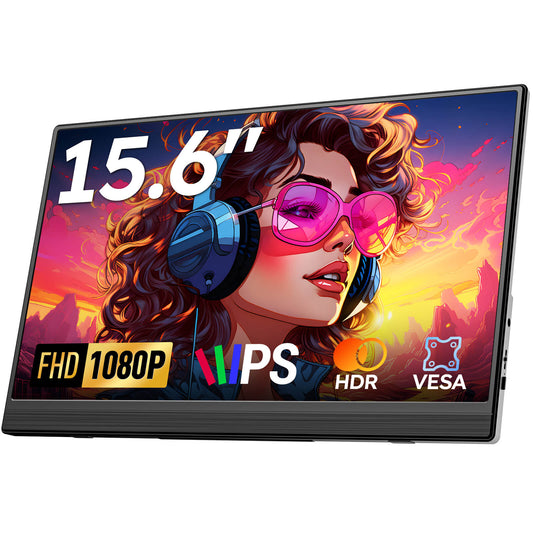
- Favpista 15.6" FHD 1080P Plug & Play Portable Monitor: The #1 top seller for single-cable laptop expansion with built-in magnetic kickstand.
- Favpista 14.1" 16:10 FHD 1200P Triple Screen Extender: Turn any 13" to 16" laptop into a 3-screen panoramic workstation.
- Favpista 15.6" Dual & Triple Screen Extender: Full-sized dual 1080P IPS screens for heavy spreadsheet workflows.
- Favpista 14.1" Touchscreen Lapdock with 10800mAh Battery: Complete mobile companion with built-in keyboard and battery.
FAQ
Q:Can any laptop support a dual screen setup?
Virtually all modern Windows laptops, MacBooks, and Chromebooks support at least one external monitor via USB-C (DP Alt Mode) or HDMI. Laptops with Thunderbolt 4 can support multiple extended displays.
Q:Why does my portable monitor turn black or say No Signal?
This usually happens when the USB-C port does not support video output (charging only), or when the cable used is a charge-only phone cord. Connect the included full-featured cable or use HDMI with a USB power cord.
Q:How do I fix blurry text on the external monitor?
Check your display scaling in Windows Display Settings. Set resolution to native 1920×1080 and set scaling to 100% or 125%. Log out and back into Windows to apply clean font smoothing.
Q:Can I power the monitor using my laptop without an outlet?
Yes. Standard 15.6-inch 1080P monitors draw only 6.5W to 8.5W, running comfortably off laptop battery power for 3 to 4.5 hours of mobile work.
Q:What is the keyboard shortcut to switch display modes on Windows?
Press Windows Key + P to instantly open the projection flyout menu and toggle between PC Screen Only, Duplicate, Extend, and Second Screen Only.