How to Test the Brightness of an LCD Display? (2026 Calibration Guide)
Display brightness—measured in candelas per square meter (cd/m²) or nits—directly dictates how clearly you can read your screen under indoor lighting, near sunlit office windows, or during outdoor travel. Whether you are evaluating a laptop screen or setting up an external portable monitor, testing luminance ensures proper contrast, color accuracy, and eye comfort.
In this technical 2026 calibration guide, we walk through industry-standard methods for testing LCD luminance, black levels, and backlight uniformity.

What is Brightness (Nits / cd/m²)?
In digital displays, luminance refers to the intensity of light emitted per unit area. One nit equals one candela per square meter (1 nit = 1 cd/m²). Typical display brightness ratings fall into these categories:
- 200 – 250 nits: Standard budget office displays; suitable only in dimly lit indoor spaces.
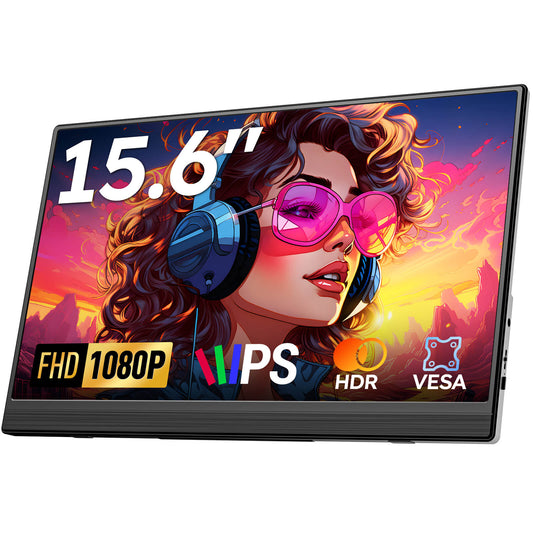
- 300 – 400 nits: The sweet spot for modern portable monitors like the Favpista 15.6" FHD Monitor, providing crisp clarity in brightly lit rooms and coffee shops.
- 500+ nits: Outdoor-viewable HDR panels capable of overpowering direct sunlight.
Step-by-Step Hardware Brightness Testing
To accurately test screen luminance, professionals use a colorimeter or photometer (such as a SpyderX or Calibrite Display Plus):
- Eliminate Ambient Glare: Darken the testing room to prevent external lighting from reflecting off the sensor.
- Warm Up the Panel: Power on the display for at least 15 to 20 minutes to allow the LED backlight to reach thermal stability.
- Set Brightness to Maximum: Using the monitor's OSD (On-Screen Display) menu, set brightness to 100% and contrast to default 50%.
- Display Full-Screen White (100% IRE): Open a pure white JPEG or full-screen blank document.
- Measure 9 Key Grid Points: Place the sensor in the center, then test the 4 corners and 4 edges to calculate backlight uniformity.
Free Software & Online Brightness Checks
If you don't own dedicated hardware calibration tools, you can perform effective visual checks:
- EIZO Monitor Test: Tests color gradients, grayscale banding, and 256-step luminance scales in any web browser.
- DisplayMate Patterns: Allows visual checks of black clipping (shadow detail) and peak white saturation.
- Smartphone Light Meter Apps: Using an ambient lux meter app held flush against a white screen provides a rough relative brightness comparison.
Recommended Favpista Displays
- Favpista 15.6" FHD 1080P Plug & Play Portable Monitor: Premium 300+ nit IPS panel with anti-glare matte coating and eye-care low blue light mode.
- Favpista 10.5" IPS HDR Ultra-Compact Monitor: High-density 100% sRGB screen with HDR enhancement for vivid contrast.
- Favpista 14.1" 16:10 FHD 1200P Triple Screen Extender: Complete 3-screen laptop expansion for power multitaskers.
- Browse All Favpista Portable Displays: Explore our full collection of lightweight external monitors.
FAQ
Q:What is the difference between nits and lumens?
Lumens measure total light output from a source in all directions (commonly used for projectors), while nits measure luminance per square meter emitted towards the viewer on flat screens.
Q:How many nits do I need for working outdoors?
In shaded outdoor areas, 350 to 400 nits with an anti-glare matte coating is comfortable. Direct, unshaded sunlight typically requires 500+ nits.
Q:Why does my portable monitor look dimmer when plugged into USB-C?
Some laptop USB ports limit output power to 5V/1A (5W). When single-cable power is constrained, the monitor limits max brightness to 30%-50% to prevent sudden shutdowns.
Q:How can I get 100% brightness on my portable monitor?
Connect a separate USB-C power adapter (15W or higher) to the secondary USB-C power port on the monitor. This unlocks 100% peak brightness and HDR performance.
Q:Does higher brightness shorten LCD lifespan?
Modern LED backlights last 30,000 to 50,000 hours. Operating at balanced brightness (150–250 nits) reduces heat generation and saves power without compromising longevity.