What is Screen Mirroring & How to Set It Up: Complete 2026 Guide
Screen mirroring allows you to duplicate the exact real-time display of your smartphone, tablet, or laptop onto an external television, projector, or portable monitor. Whether you are presenting a business proposal in a conference room, reviewing high-resolution photography, or streaming mobile video to a bigger display, screen mirroring eliminates the constraints of small handheld screens.
However, many users confuse Screen Mirroring with Screen Casting and Desktop Mode. In this updated 2026 guide, we clarify the differences, explore wired versus wireless setup methods, and explain how to achieve lag-free mirroring on any screen.

Mirroring vs. Casting vs. Desktop Mode: Key Differences

3 Ways to Set Up Screen Mirroring
Method 1: Direct USB-C Wired Mirroring (Zero Lag)
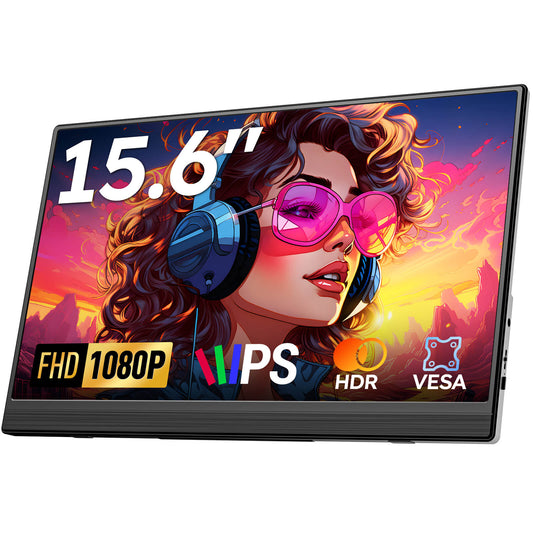
For gaming and work, wired mirroring is undefeated. If your device features a full-function USB-C port with DP Alt Mode (such as iPhone 15/16 Pro, Samsung Galaxy S series, or iPad Pro), connect directly to a Favpista 15.6" Portable Monitor with a single USB-C cable. You achieve instant 1080P/60Hz transmission with 0ms latency.
Method 2: Android Smart View & Miracast (Wireless)
Swipe down from the top of your Android screen and tap Smart View, Cast, or Wireless Projection. Select your Miracast-compatible smart TV or wireless HDMI receiver dongle from the list. Your phone screen will duplicate wirelessly across the room.
Method 3: Apple AirPlay (iOS & macOS)
Swipe down from the top-right corner of your iPhone or iPad to open Control Center. Tap the Screen Mirroring icon (two overlapping rectangles) and choose your Apple TV or AirPlay-compatible smart television.
Transforming Screen Mirroring into a Full Laptop
While standard screen mirroring simply replicates your phone's vertical screen, modern Android devices from Samsung, Motorola, and Huawei feature built-in desktop modes. Pairing your smartphone with the Favpista 14.1" Touchscreen Lapdock instantly converts phone mirroring into a complete PC operating environment with a keyboard, precision trackpad, multi-window multitasking, and built-in 10800mAh battery.
Recommended Favpista Displays for Screen Mirroring
- Favpista 14.1" Touchscreen Lapdock with 10800mAh Battery: Turns Samsung DeX and smartphone mirroring into a full laptop experience with keyboard and battery.
- Favpista 15.6" FHD 1080P Plug & Play Portable Monitor: Single-cable USB-C mirroring for laptops, MacBooks, tablets, and phones.
- Favpista 14.1" 16:10 FHD 1200P Triple Screen Extender: Multi-screen folding workstation for power spreadsheet multitaskers.
- Browse All Favpista Portable Displays: Explore our full range of external monitors.
FAQ
Q:Does screen mirroring require Wi-Fi?
Wireless mirroring via Miracast uses Wi-Fi Direct and does not need a router or internet access. Wired mirroring over USB-C or HDMI requires no network at all.
Q:Why do black bars appear on the sides of my TV when mirroring?
Smartphones use tall 19.5:9 or 20:9 aspect ratios, whereas monitors and TVs use 16:9 widescreen. Rotating your phone horizontally into landscape mode expands the video to fill the screen.
Q:Can I mirror an iPhone 15 or 16 directly to a portable monitor?
Yes. iPhone 15 and 16 models with USB-C support native DisplayPort video output. Plug a full-featured USB-C cable directly into the monitor for instant mirroring.
Q:What causes audio lag during screen mirroring?
Wireless network interference and compression buffering cause 50ms–150ms delays. Switching to a direct wired USB-C or HDMI connection eliminates audio and video latency completely.
Q:Can you use a touchscreen while screen mirroring?
Yes, when connected via a full-featured USB-C cable to a touchscreen display like the Favpista Lapdock, touch interactions on the monitor directly control your phone.