What is USB-C DisplayPort (DP Alt Mode)? Complete 2026 Guide
USB connectors and cables are among the most essential connectivity standards for modern computing. Since 2014, the reversible USB-C connector has largely replaced the legacy rectangular USB-A port across ultrabooks, MacBooks, tablets, and smartphones. Yet one question continues to generate confusion: What is USB-C DisplayPort (DP Alt Mode), and how does it enable single-cable connection to a portable monitor?
In this 2026 deep-dive, we explore the physical architecture of USB-C, explain how DisplayPort Alternate Mode repurposes internal pins for video transmission, and provide practical guidelines for verifying device compatibility.

What is USB-C?
USB-C is a 24-pin physical connector specification developed by the USB Implementers Forum (USB-IF). Unlike older asymmetrical connectors, USB-C is completely flippable and reversible. However, it is vital to understand that USB-C describes only the physical shape of the plug—it does not automatically define what protocols or bandwidth run across its copper traces.
The USB-C connector encompasses four major technical capabilities:
- Connector Reversibility: Symmetrical 24-pin layout allows plug insertion in either direction without damage.
- Alternate Mode (Alt Mode): Allows internal differential pairs to be repurposed to carry native non-USB signals, including DisplayPort, Thunderbolt, and HDMI.
- USB Power Delivery (USB PD): Bidirectional power delivery supporting 15W up to 240W for charging laptops, displays, and smartphones.
- High-Speed Data: Supports USB 3.2 Gen 1 (5 Gbps), Gen 2 (10 Gbps), USB4, and Thunderbolt 4 (40 Gbps) data transfers.

What is USB-C DisplayPort (DP Alt Mode)?
DisplayPort Alternate Mode (DP Alt Mode) is a VESA standard that allows a host device's GPU to route uncompressed DisplayPort video and multi-channel digital audio directly through the USB-C connector. Because it bypasses software emulation, DP Alt Mode delivers zero latency, true hardware acceleration, and native resolution support without requiring extra graphics drivers or dongles.

Are USB-C and Thunderbolt Compatible?
Thunderbolt 3, Thunderbolt 4, and USB4 all utilize the identical physical Type-C form factor. The critical difference is that all Thunderbolt 3 and 4 ports inherently mandate DisplayPort Alt Mode support. If your laptop is an Apple Silicon MacBook or an Intel PC featuring a lightning bolt emblem (⚡), it is 100% compatible with single-cable external displays like the Favpista 15.6" Portable Monitor.

Recommended Favpista Plug-and-Play Monitors
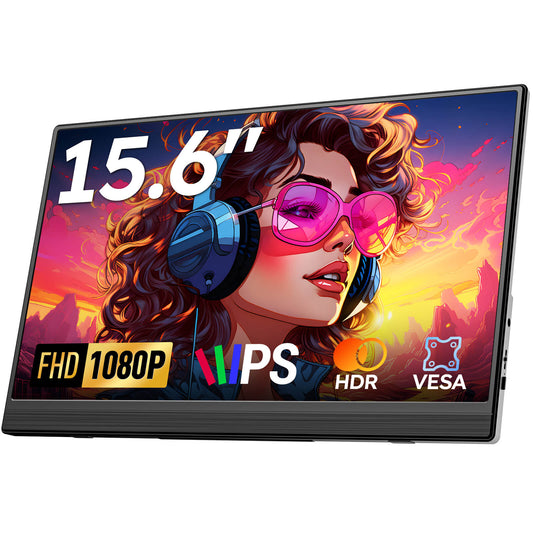
- Favpista 15.6" FHD 1080P Plug & Play Portable Monitor: Single-cable DP Alt Mode display featuring dual USB-C ports and Mini HDMI input.
- Favpista 14.1" 16:10 FHD 1200P Triple Screen Extender: Dual-screen extension wings powered by full-featured USB-C connections.
- Favpista 14.1" Touchscreen Lapdock with 10800mAh Battery: Complete mobile setup with built-in battery and multi-touch DP Alt Mode support.
- Browse All Favpista Portable Displays: Explore our full collection of versatile external screens.
FAQ
Q:What is the primary benefit of DP Alt Mode?
DP Alt Mode allows a single USB-C cable to transmit high-definition video, audio, touch control signals, and operating electrical power simultaneously with zero lag.
Q:How can I confirm if my Windows laptop supports DP Alt Mode?
Check for a DisplayPort logo (a stylized 'D') or a Thunderbolt lightning bolt next to the USB-C port, or check your laptop's official spec sheet for 'DisplayPort Alternate Mode' or 'Display over USB-C'.
Q:Do Apple Silicon MacBooks support DP Alt Mode on all ports?
Yes. All USB-C ports on Apple MacBook Pro and MacBook Air models support Thunderbolt and USB4 with native DisplayPort video output.
Q:Can I use DP Alt Mode with an HDMI monitor?
Yes. You can use a USB-C to HDMI adapter or cable. The adapter converts the DP Alt Mode video signal into an HDMI-compliant signal for your monitor or TV.
Q:Why does my screen flicker when using DP Alt Mode?
Flickering is almost always caused by an unshielded or worn cable, or insufficient power delivered from your host laptop. Connect an auxiliary 5V/2A or PD charger to the monitor's second port.