What to Consider When Selecting a Touchscreen Portable Monitor (2026 Buying Guide)
Touchscreen displays have fundamentally reshaped how we interact with digital workflows. From signing digital contracts and navigating spreadsheets to mobile sketching and Samsung DeX multitasking, adding capacitive touch capabilities to an external screen transforms a passive display into an interactive canvas. But before investing in a touchscreen portable monitor, choosing the right specifications is crucial for ensuring hardware and operating system compatibility.
In this comprehensive 2026 buying guide, we explore touchscreen panel technologies (Capacitive vs. Optical), multi-touch gesture responsiveness, stylus support, and key compatibility nuances across Windows 11, macOS, and Android.

5 Critical Factors to Consider When Buying a Touchscreen Monitor
1. Capacitive 10-Point Multi-Touch vs. Resistive Panels
Always ensure the display features 10-Point Projected Capacitive (PCAP) multi-touch with full glass lamination. Capacitive panels provide smooth smartphone-like responsiveness, supporting multi-finger pinch-to-zoom, two-finger scrolling, and rotating gestures. Avoid outdated resistive panels that require firm physical pressure.
2. Operating System Compatibility & Driver Support
- Windows 11 & 10: Native plug-and-play 10-point multi-touch support via single full-featured USB-C cable—zero drivers required.
- Samsung DeX & Android: Full multi-touch support, transforming your smartphone into an interactive desktop environment. Hardware like the Favpista 14.1" Touchscreen Lapdock is purpose-built for DeX and mobile workflows.
- macOS (Apple MacBooks): Apple restricts macOS touch interaction to single-touch point emulation by default (Apple prioritizes iPad for touch). While you can tap and click like a mouse, multi-touch gestures like pinch-to-zoom are limited on macOS without third-party gesture mapping software.
3. Single-Cable USB-C vs. Dual-Cable HDMI Connection
To enable touch functionality over a single wire, your laptop or phone must connect via a Full-Featured USB-C port supporting both DisplayPort video and USB human interface device (HID) data channels. If connecting via HDMI, you must connect a secondary USB-A to USB-C cable to your laptop to transmit touch coordinates back to your operating system.
4. Screen Finish & Anti-Fingerprint Coating
Because fingers repeatedly touch the glass surface, choose a touchscreen with an oleophobic anti-fingerprint coating and scratch-resistant tempered glass (7H hardness). This prevents oily smudges from degrading image contrast and readability in brightly lit rooms.
5. Battery Integration
Touchscreen digitizer controllers and glass layers draw slightly more electrical current than non-touch panels. If you plan to use a touchscreen monitor with a smartphone, choosing a model with an integrated battery—such as the 10,800mAh battery in the Favpista Lapdock—prevents rapid battery drain on your mobile phone.
Recommended Favpista Touchscreen Displays
- Favpista 14.1" Touchscreen Lapdock with 10800mAh Battery: The premier all-in-one touchscreen mobile solution featuring responsive 10-point multi-touch, built-in keyboard, precision touchpad, and large internal battery.
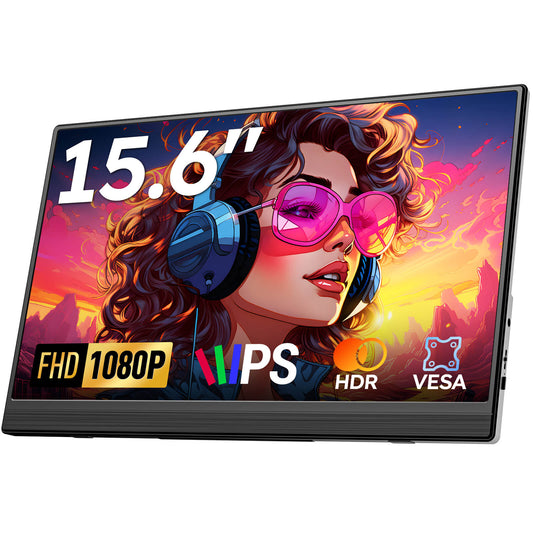
- Favpista 15.6" FHD 1080P Plug & Play Portable Monitor: Ideal non-touch matte display for users prioritizing anti-glare viewing and lightweight portability.
- Favpista 14.1" 16:10 FHD 1200P Triple Screen Extender: Multi-screen folding workstation for power spreadsheet multitaskers.
- Browse All Favpista Portable Displays: Explore our full range of external monitors.
FAQ
Q:Does touchscreen work over HDMI?
Not with an HDMI cable alone. HDMI only transmits audio and video signals. To enable touch, you must connect a secondary USB cable between your laptop and the monitor to transfer touch coordinates.
Q:Does multi-touch work natively on MacBooks running macOS?
macOS supports basic single-touch point-and-click emulation natively. However, multi-touch gestures like two-finger pinch-to-zoom are limited on macOS due to Apple's operating system design.
Q:Do I need special drivers to use a touchscreen on Windows 11?
No. Windows 11 includes native Human Interface Device (HID) touch drivers. Connecting via a full-featured USB-C cable enables instant 10-point multi-touch out of the box.
Q:Can I use a stylus pen on a touchscreen portable monitor?
Standard capacitive stylus pens (rubber nib or disc tip) work on capacitive touchscreen monitors. However, active digitizer pens requiring Wacom or Microsoft Pen Protocol (MPP) require specific hardware support.
Q:Does touchscreen increase monitor battery consumption?
Yes. Touch digitizer controllers and USB communication draw an additional 1W to 2W of power compared to non-touch displays. Using an external power source or battery lapdock ensures peak performance.