USB-C Cable Guide for Portable Monitors: Thunderbolt, USB4 & DisplayPort Alt Mode (2026)
In modern remote work and travel workflows, a portable monitor is no longer just a luxury—it is an indispensable productivity tool. Whether you are a software engineer reviewing code, an analyst running complex financial models, or a content creator on the road, adding a second screen instantly doubles your effective workspace.
Among various portable displays, Favpista monitors stand out for their sleek form factor, IPS panel color accuracy, and seamless plug-and-play architecture. However, before getting started, one critical question frequently emerges: What exact USB-C cable do I need to connect a portable monitor, and how do Thunderbolt 3, Thunderbolt 4, and USB4 differ? Let's break down the technical differences and how to select the right cable for your setup in 2026.

USB-C Protocols: USB 3.2 vs. USB4 vs. Thunderbolt
While all modern cables share the same oval USB-C plug, their internal bandwidth, data protocols, and video capabilities vary substantially:

The 2 Connection Methods for Favpista Displays
- Single-Cable USB-C Mode (Cleanest Setup): If your laptop, MacBook, or phone supports DisplayPort Alt Mode or Thunderbolt, connect using the provided Full-Featured USB-C to USB-C cable. A single cable delivers high-definition video, audio, touch response, and operational power.
- Dual-Cable HDMI Mode (Universal Compatibility): For desktop graphics cards, gaming consoles (PS5, Xbox, Nintendo Switch dock), or older laptops lacking DP Alt Mode, use the included Mini HDMI to HDMI cable for video and connect a secondary USB-A to USB-C cable to provide electrical power.
Recommended Favpista Portable Displays
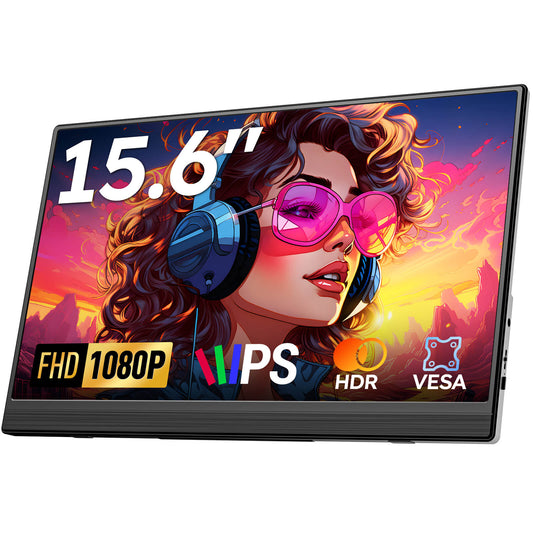
- Favpista 15.6" FHD 1080P Plug & Play Portable Monitor: Includes certified full-featured USB-C to USB-C cable and Mini HDMI to HDMI cable right in the box.
- Favpista 14.1" 16:10 FHD 1200P Triple Screen Extender: Complete multi-screen workstation with multi-cord bundle for diverse laptop ports.
- Favpista 14.1" Touchscreen Lapdock with 10800mAh Battery: Single-cable Samsung DeX and laptop companion with built-in battery.
- Browse All Favpista Portable Displays: Explore our full catalog of plug-and-play mobile screens.
FAQ
Q:Can I connect a portable monitor with a phone charging cable?
No. Standard smartphone charging cables only have USB 2.0 data lines and lack the high-speed differential pinouts required for DisplayPort Alternate Mode video.
Q:Will a Thunderbolt 4 cable work on a standard USB-C monitor?
Yes. Thunderbolt 4 cables are fully backward compatible with Thunderbolt 3, USB4, and USB 3.2 DP Alt Mode displays.
Q:Does USB 3.0 support video output directly?
No. Classic USB 3.0 Type-A ports do not support native video out. Connecting to a portable monitor via USB-A requires an external active DisplayLink adapter.
Q:How can I identify a full-featured USB-C cable?
Look for a printed Thunderbolt lightning bolt (⚡) or "SS 10" / "SS 20" logo on the connector housing. These cables are also thicker and contain internal E-Marker chips.
Q:Do Favpista portable monitors come with video cables included?
Yes. Every Favpista portable monitor includes a high-speed full-featured USB-C to USB-C cable, a Mini-HDMI to HDMI cable, and a USB power cord in the box.