Why My Portable Monitor Shows No Signal? 7 Troubleshooting Steps (2026 Guide)
Have you been greeted with a frustrating 'No Signal' screen after plugging your portable monitor into your laptop, smartphone, or gaming console? Don't panic—this rarely means you bought a defective display. In over 95% of cases, a 'No Signal' message is caused by cable mismatch, power starvation, port compatibility, or dormant display output settings. This comprehensive 2026 troubleshooting guide walks you through the 7 root causes and exact step-by-step fixes to get your display working immediately.

Understanding 'No Response' vs. 'No Signal'
Before troubleshooting, distinguish between these two different hardware states:
- No Response (Black Screen, No LED Light): The monitor is receiving zero electrical power. Ensure you are connected to a working USB-C power port or external wall adapter.
- 'No Signal' Message (LED Lights Up Green or Blue): The monitor has adequate electrical power, but display controller ICs cannot detect a valid DisplayPort or HDMI video signal clock from your host computer.

7 Steps to Fix 'No Signal' on Portable Monitors
1. Verify USB-C Port Video Support (DP Alt Mode)
Not all USB-C ports on laptops and phones transmit video. Standard USB-C charging ports only carry power and USB 2.0 data. Ensure your laptop port is labeled with a DisplayPort (D-icon), Thunderbolt lightning bolt, or confirmed in device specifications as USB 3.2 Gen 2 / USB4 with DP Alt Mode.
2. Replace Charge-Only USB-C Cables
Grabbing a random white charging cord from a smartphone or Kindle will fail. Charging cables only contain 4 copper wires inside and lack high-speed video traces. You must use the full-featured USB-C to USB-C cable included in the box with your Favpista 15.6" Portable Monitor.
3. Plug into the Correct Monitor USB-C Port
Many portable monitors have two Type-C ports: one dedicated exclusively to PD Power Input, and the other for Full-Function Video + Power. If you plug your video source into the power-only port, the screen will display 'No Signal'. Swap ports to test.
4. Connect External Auxiliary Power
Flagship phones and ultrabooks frequently cap USB power output below 5W when battery levels dip below 30%. Connect a 15W+ wall charger or power bank into the monitor's secondary Type-C port to provide dedicated operating power.
5. Toggle Windows / macOS Display Output
On Windows 11, press Windows Key + P and select Extend or Duplicate. On macOS, navigate to System Settings > Displays and click Detect Displays.
6. Power Cycle Nintendo Switch in Correct Order
When connecting a Nintendo Switch directly via USB-C, the monitor must be powered by an official 15V PD power supply. Connect power to the monitor first, then connect the Switch.
7. Check HDMI Port and Cable Quality
If connecting via HDMI, ensure you also connect an accompanying USB cable to supply operating power, as standard HDMI cables cannot transmit electrical power.

Recommended Reliable Displays from Favpista
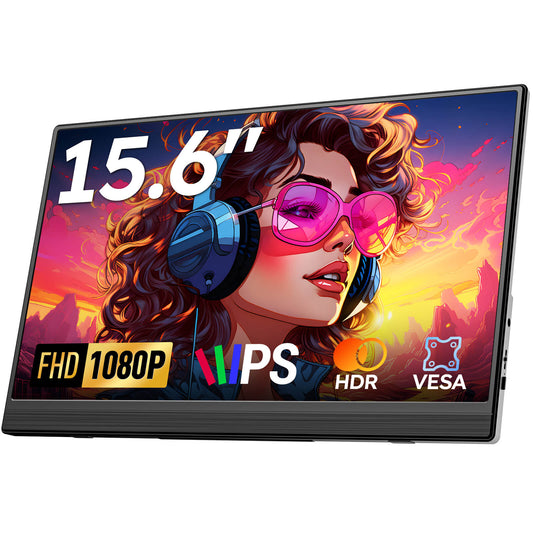
- Favpista 15.6" FHD 1080P Plug & Play Portable Monitor: Includes a premium full-featured USB-C to USB-C cable and Mini-HDMI cord in the box—zero extra accessories needed.
- Favpista 14.1" 16:10 FHD 1200P Triple Screen Extender: Complete multi-screen laptop extender with smart auto-handshake controllers.
- Favpista 14.1" Touchscreen Lapdock with 10800mAh Battery: Internal battery eliminates power starvation issues entirely.
- Browse All Favpista Portable Displays: Discover the complete range of travel, gaming, and business monitors.
FAQ
Q:Why does my portable monitor turn on for 2 seconds and then say No Signal?
The monitor is successfully receiving initial power, but your cable lacks the high-speed data pins required for DisplayPort video, or your laptop port is a charge-only port. Use the provided full-featured cable or an HDMI cable.
Q:Can I use an Apple iPhone charging cable with a portable monitor?
No. Apple's standard white braided USB-C charging cables are USB 2.0 power cords without video wiring. You must use a certified Thunderbolt 4 or USB 3.2 Gen 2 cable.
Q:Why does the monitor show No Signal when connected via HDMI?
HDMI cables carry video and audio only; they cannot carry electrical operating power. You must connect a separate USB-C cable to a power source to keep the monitor powered.
Q:How do I fix No Signal on Nintendo Switch?
The Switch requires 15V power delivery to trigger video output. Plug the original Nintendo AC adapter or a 45W+ PD charger into the monitor's second port before connecting the console.
Q:Does screen resolution cause No Signal errors?
If your laptop outputs an unsupported refresh rate (e.g., attempting 120Hz on a 60Hz screen) or an unsupported resolution, the monitor will display 'Out of Range' or 'No Signal'. Reset display output to 1920×1080 @ 60Hz.