Does Huawei Have a DeX Mode? Huawei Easy Projection & EMUI Desktop Explained (2026)
When users discover Samsung DeX, one natural question frequently follows from owners of other flagship smartphones: Does Huawei have an equivalent DeX desktop mode?
The answer is an emphatic YES. Long before many competitors introduced desktop interfaces, Huawei pioneered Easy Projection (EMUI Desktop / HarmonyOS PC Mode). Available on Huawei Mate, P-series, and select Honor flagships, this technology converts your smartphone into a full windowed PC interface the moment you connect it to an external display or portable monitor.

What is Huawei Easy Projection (EMUI Desktop)?
Huawei Easy Projection offers two distinct operational modes when plugged into an external screen:
- Phone Mirroring Mode: Duplicates your exact vertical phone screen onto the monitor—ideal for sharing mobile photos, TikToks, or family videos.
- Desktop Mode (EMUI / HarmonyOS PC Mode): Transforms your screen into a clean desktop environment featuring a Windows-like start menu, bottom taskbar, system tray with Wi-Fi/Bluetooth toggles, and multi-window multitasking. Your phone's screen simultaneously turns into a multi-touch virtual trackpad and keyboard.

Huawei Desktop Mode vs. Samsung DeX Comparison
How to Connect Your Huawei / Honor Phone
1. Single-Cable USB-C Setup (Recommended)
Connect your Huawei Mate or P-series phone directly to a Favpista 15.6" FHD Portable Monitor or Favpista 14.1" Touchscreen Lapdock using the included Full-Featured USB-C to USB-C cable. The phone will notify you that an external display is detected—select Desktop Mode to launch the PC interface immediately.
2. Wireless Projection (Cordless)
On your Huawei phone, swipe down the notification shade and tap Wireless Projection. Select your Miracast-compatible TV or wireless monitor receiver to start projecting without physical cables.
Best Portable Displays for Huawei Desktop Mode
- Favpista 14.1" Touchscreen Lapdock with 10800mAh Battery: The definitive mobile laptop companion for Huawei Easy Projection—features tactile keyboard, touchpad, touchscreen, and all-day battery.
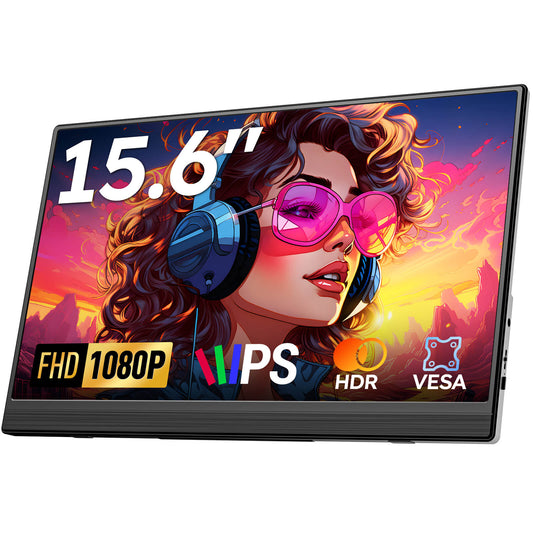
- Favpista 15.6" FHD 1080P Plug & Play Portable Monitor: Single-cable plug-and-play external screen with vivid IPS panel.
- Favpista 14.1" 16:10 FHD 1200P Triple Screen Extender: Advanced multi-screen extension for Windows and Mac laptop users.
- Browse All Favpista Portable Displays: Explore our full catalog of productivity displays.
FAQ
Q:Which Huawei and Honor phones support Easy Projection Desktop Mode?
Huawei Mate series (Mate 10 through Mate 60/70 Pro), P series (P20 through P60/Pura 70 Pro), and flagship Honor Magic series (Magic 3 through Magic 6/7 Pro) support full desktop mode over USB-C.
Q:Can I use a touchscreen portable monitor with Huawei Desktop Mode?
Yes. Huawei Easy Projection fully supports multi-touch gestures when connected via a full-featured USB-C cable to a touchscreen display like the Favpista Lapdock.
Q:Do private messages appear on the monitor during presentation?
No. In Desktop Mode, incoming calls and text messages remain exclusively on your phone's screen, ensuring complete privacy during client presentations and business meetings.
Q:Does Huawei Desktop Mode require an external dock?
No. Unlike early versions of Samsung DeX that required a physical docking station, Huawei Easy Projection works over a standard single USB-C cable directly connected to your monitor.
Q:Can you use your phone as a trackpad?
Yes. When Desktop Mode is activated, your phone displays a virtual touchpad that supports cursor movement, two-finger scrolling, and a virtual keyboard when clicking text fields.