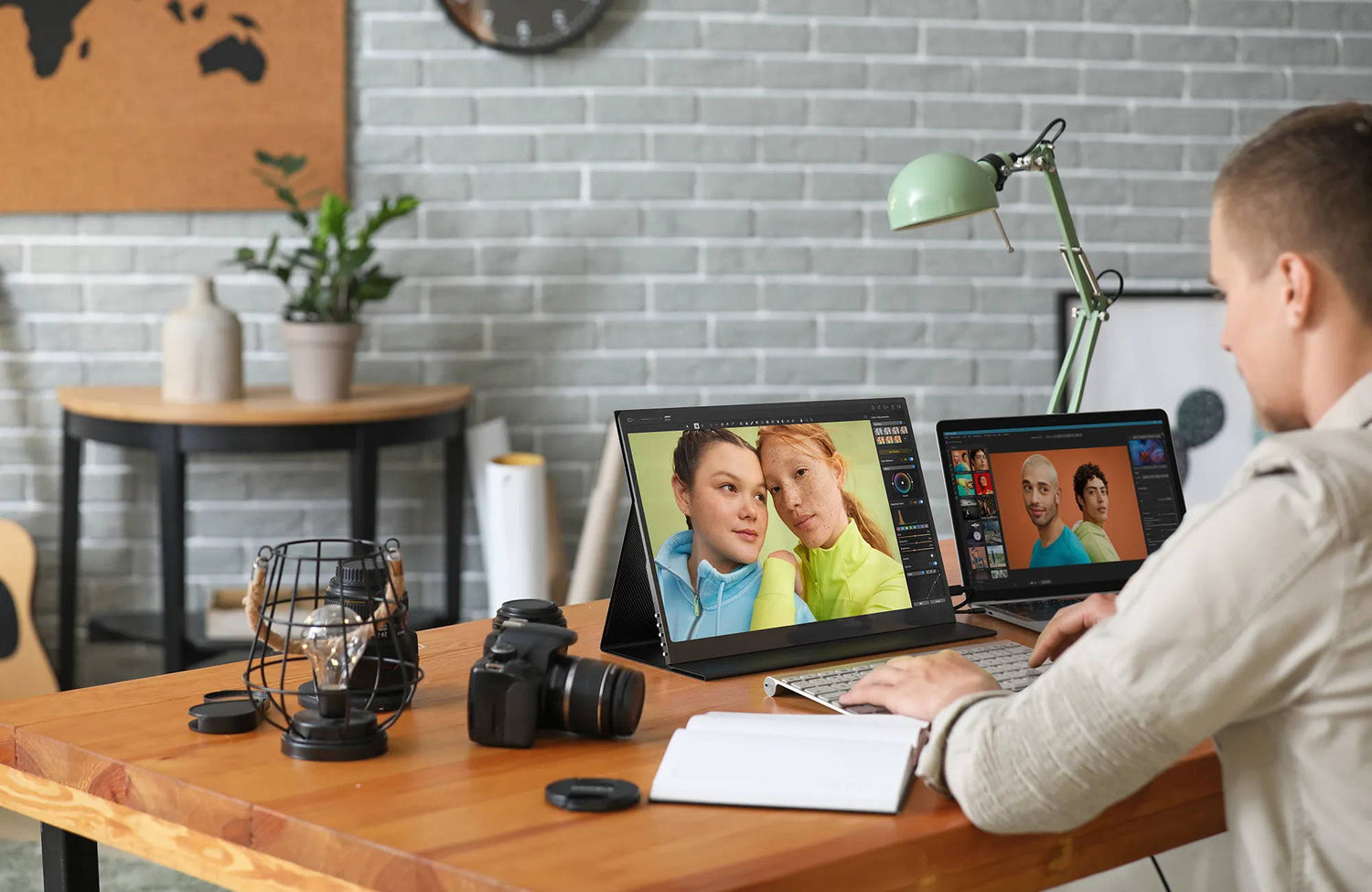
Best for: A portable display solution for extending your laptop workspace at home, in the office, or while traveling.
14.1 Inch 1920x1200 FHD Triple Portable Monitor for Laptop – 16:10 Productivity Ratio
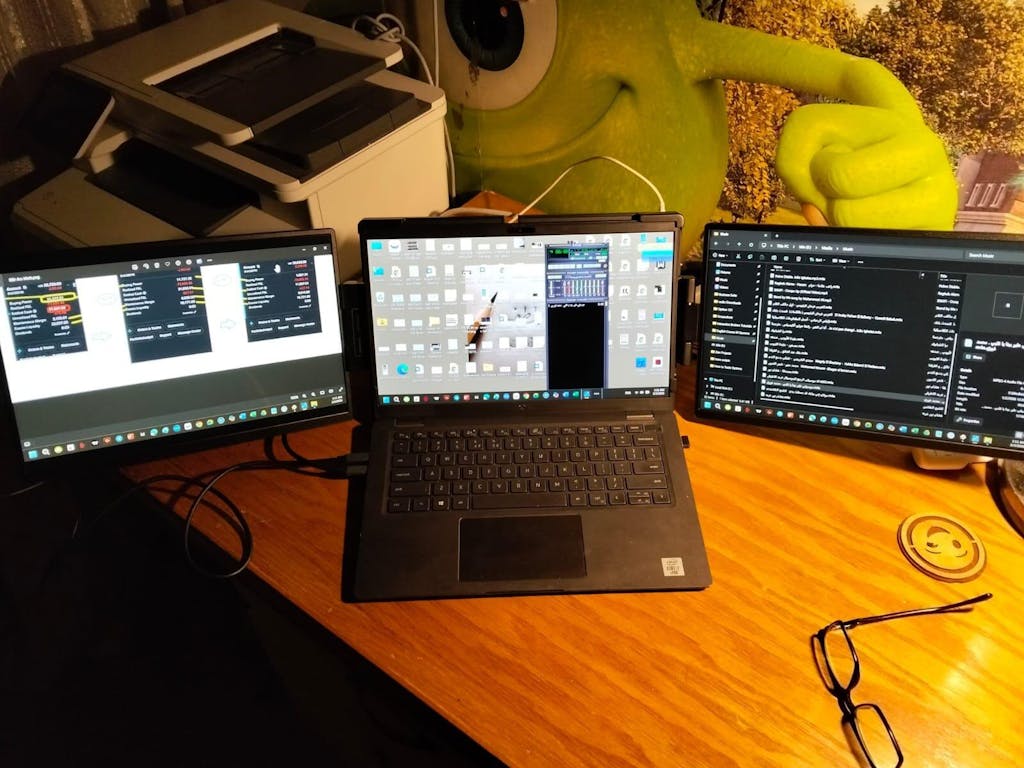
Upgrade your productivity and gaming setup with the 14.1 Inch 1920x1200 FHD Triple Portable Monitor. Featuring an expansive 16:10 aspect ratio, this monitor provides 11% more vertical viewing area than traditional screens. Designed for professionals, gamers, and travelers, this monitor offers crisp visuals, lightweight portability, and plug-and-play functionality, making it an ideal companion for work and entertainment on the go.
Key Features
-
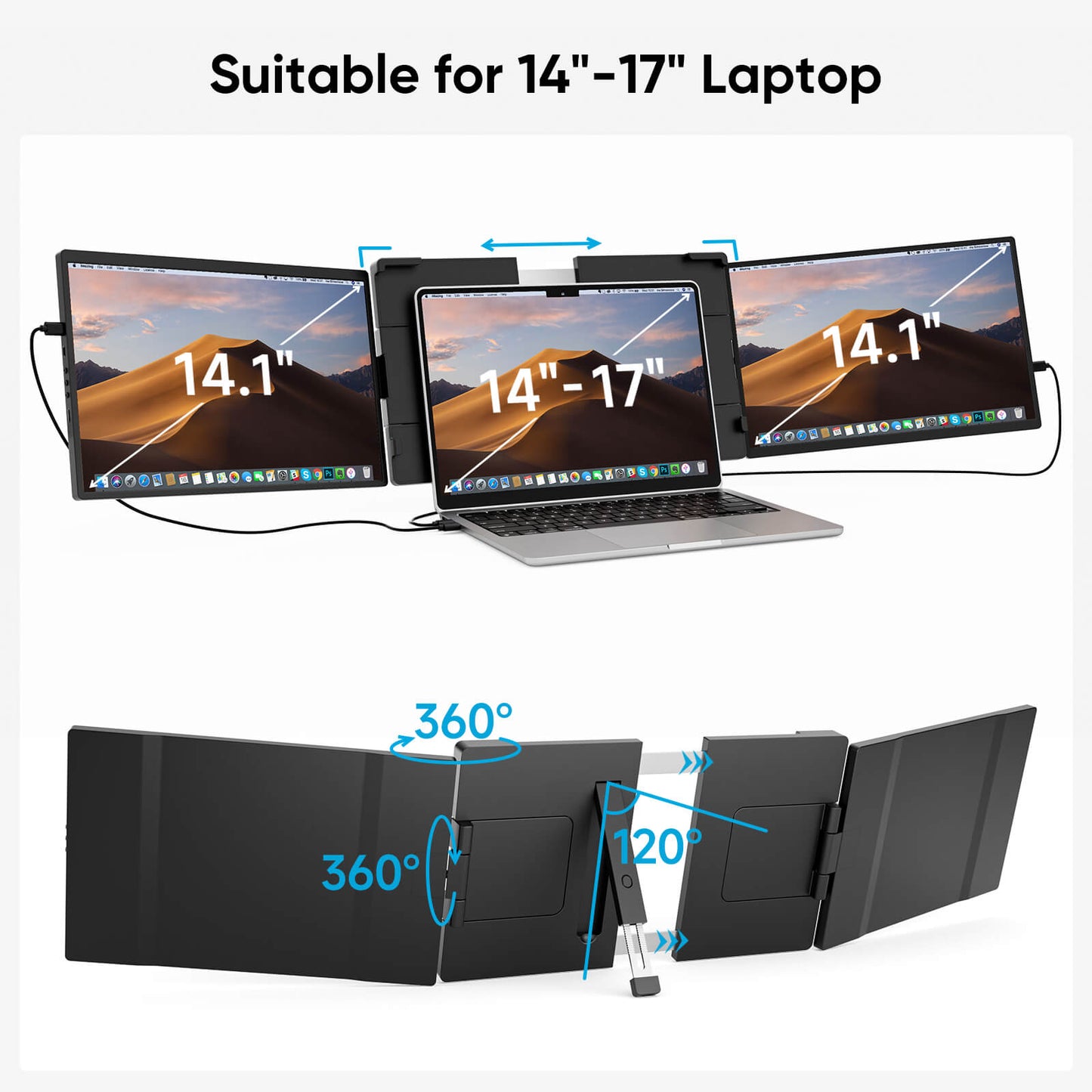
Dual 14.1" 16:10 FHD Displays: Vibrant 1920×1200 resolution with a 16:10 aspect ratio provides 11% more vertical screen space for coding, spreadsheets, and reading.
-
Lightweight and Compact Design: Portable and easy to carry, perfect for travel, coffee shops, or remote work setups.
-
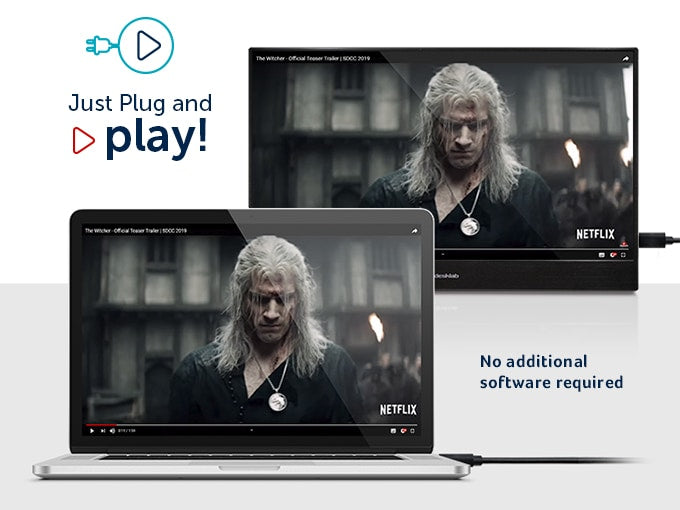
Plug-and-Play Functionality: Connect effortlessly via full-featured USB-C or Mini HDMI with no drivers needed for Windows.
-
Wide Compatibility: Works with laptops, gaming consoles (PS4, PS5, Xbox, Switch), and smartphones via USB-C or HDMI.
-
Flexible Viewing Options: Dual screens rotate from 180° to 235° for private work or face-to-face client presentations.
Specifications
| Screen Size |
14.1 inch × 2 screens |
| Panel Type |
IPS (178° Wide Viewing Angle) |
| Resolution |
1920 × 1200 (FHD 1200P) |
| Screen Ratio |
16:10 (Productivity Ratio) |
| Refresh Rate |
60 Hz |
| Screen Rotation |
180° to 235° Foldable & Rotatable |
| Fit Laptop Size |
13.3 to 17.3 inch laptops (thickness < 8.5 mm) |
| Bracket & Stand |
Expandable Clamp with Integrated Kickstand |
| Ports |
Full-Featured Type-C, Mini HDMI, USB-A |
| Compatible OS |
Windows, macOS (driver provided for M1/M2/M3), Android, Switch, PS4/PS5, Xbox |
Notice Before Purchasing
Because of the limitations of the chip, Macbook users need to download the driver to use both screens properly, otherwise only one screen will light up. Please don't hesitate to contact us for the driver. And you need to connect your USB 3.0 port to the type-c port in the center near the button.
How to Use a Portable Display with a Laptop
Note: Method 1 is a universal connection method.
Methods 2 and 3 require a laptop with a Thunderbolt port;
Additionally, due to chip limitations, MacBook users need to download drivers to use the dual screens properly; otherwise, only one screen will light up. Please contact us for drivers. You need to connect the USB 3.0 port to the Type-C port located near the center button on your laptop.
Method 1:
The left screen can be connected via an HDMI cable. You will need an additional Type-C to Type-C cable to connect to an external power adapter or laptop (to power the display).
The right screen can be connected to the laptop via a Type-C to USB-A cable.
Method 2:
The left screen can be connected to the laptop via a Type-C to Type-C cable.
The right screen can be connected to the laptop via a Type-C to USB-A cable.
Method 3:
The left screen can be connected to the laptop via a Type-C to Type-C cable.
The right screen can also be connected to the laptop via a Type-C to Type-C cable.
What's in the Box
- 2 x 14.1" Portable Monitor
- 1 x Support with Kickstand
- 1 x USB-C to USB-C Cable
- 1 x USB-A to USB-C Cable
- 1 x Mini HDMI to HDMI Cable
FAQ
Q:How many screens are included, and what is the benefit of the 16:10 aspect ratio?
This product includes two independent 14.1-inch 1920×1200 IPS displays mounted on an adjustable folding bracket. The 16:10 aspect ratio gives you 11% more vertical screen real estate compared to standard 16:9 1080P monitors, allowing you to see more lines of code and longer spreadsheets with significantly less scrolling.
Q:How does this triple monitor work with Apple Silicon MacBooks (M1, M2, M3, M4)?
Windows laptops with Thunderbolt or full-featured USB-C ports connect plug-and-play. Due to native macOS output limits on standard base M1, M2, and M3 chips, MacBook users only need to install a simple display driver to enable both screens to extend independently. Please contact our 24/7 support team for the instant driver download and step-by-step setup guide.
Q:What cables do I need to connect and power both screens?
You can connect using two full-featured USB-C cables (one for each screen), or a combination of Mini HDMI (for video) plus USB-A to USB-C (for power). If your laptop’s USB ports cannot provide sufficient wattage to drive dual bright screens simultaneously, simply plug an external 15W+ PD charger into either screen's secondary power port.
Q:Will this screen extender fit my laptop size?
The expandable bracket is engineered to fit most 13.3 to 17.3-inch laptops with a screen thickness under 8.5mm (0.33 inches). The sturdy rear kickstand supports the weight on your desk, protecting your laptop's screen hinges from strain.
Q:Can the displays rotate or fold for meeting presentations and travel?
Yes. The dual screens support flexible 180° to 235° rotation angles. You can fold one screen backwards for 180° face-to-face meeting sharing, or fold both screens completely flat into a compact footprint that easily slides into your laptop backpack.