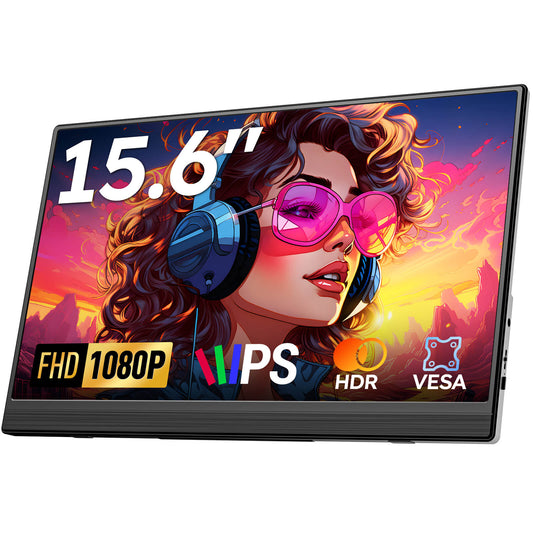
How to Play PS5 on a Portable Monitor: Complete 2026 Setup Guide
The Sony PlayStation 5 (PS5) delivers stunning next-generation graphics, near-instant load times, and immersive 3D spatial audio. But you don't need to be anchored to a 65-inch living room television to enjoy it. Pairing your console with a portable gaming monitor creates a mobile powerhouse for hotel rooms, dorms, LAN parties, and compact desks.
In this 2026 setup guide, we walk you through the proper HDMI and power wiring steps, optimal PS5 video output settings, and recommended displays for low-latency gaming.

Why Pair a PS5 with a Portable Monitor?
- Play Anywhere: Pack your PS5 and a slim 15.6-inch screen into a travel backpack for gaming at friends' houses or during extended hotel stays.
- Zero TV Scheduling Conflicts: Game freely without competing for the shared household television.
- Ultra-Low Input Latency: IPS portable gaming panels feature near-zero scaler latency, providing crisp frame response in competitive titles like Call of Duty and Apex Legends.
- Integrated Sound & Headphone Support: Dual built-in stereo speakers plus a dedicated 3.5mm headphone jack let you plug in gaming headsets with ease.
Step-by-Step PS5 to Portable Monitor Setup
Step 1: Power the Portable Monitor
Because the PS5's HDMI port does not transmit electrical operating power, you must power the portable monitor independently:
- Plug the included USB-A to USB-C cable into one of the rear USB ports on the PS5 and connect the Type-C end into the monitor's PD / Power port.
- Alternatively, connect a standard 5V/2A or 15W+ wall charger directly to the monitor's power port.
Step 2: Connect the HDMI Video Cable
Connect the included HDMI to Mini-HDMI cable from the PS5 console's HDMI OUT port directly into the Mini-HDMI port of your Favpista 15.6" FHD Portable Monitor.
Step 3: Pair Your DualSense Controller
Connect your DualSense controller to the front USB-C port of the PS5 using a charging cable. Press the PS button to pair the controller directly to the console. Once paired, unplug the cable to play wirelessly.

Recommended PS5 Display Settings for Optimal Visuals
- Navigate to Settings > Screen and Video > Video Output.
- Set Resolution to 1080p for native 1:1 pixel rendering on Full HD displays.
- Enable HDR (set to 'On When Supported') to enjoy richer contrast and deeper black levels.
- Set RGB Range to Automatic to prevent crushed shadows or clipped highlights.

Recommended Favpista Displays for PS5 Gaming
- Favpista 15.6" FHD 1080P Plug & Play Portable Monitor: Ideal console gaming companion featuring low input lag, dual speakers, Mini-HDMI input, and included HDMI cable.
- Favpista 14.1" 16:10 FHD 1200P Triple Screen Extender: Complete 3-screen laptop expansion for power multitaskers.
- Favpista 14.1" Touchscreen Lapdock with 10800mAh Battery: Complete mobile setup with built-in battery, keyboard, and touchscreen.
- Browse All Favpista Portable Displays: Explore our full collection of lightweight, travel-friendly external monitors.
FAQ
Q:Can the PS5 power the portable monitor through the HDMI cable?
No. HDMI cables only carry audio and video. You must connect a USB-A to USB-C cable from the PS5 rear USB port to the monitor's power port, or use an external wall charger.
Q:Can I power the monitor directly from the PS5's USB port?
Yes. The rear USB-A ports on the PS5 deliver up to 5V/1.5A (7.5W–10W), which is sufficient to power a 15.6-inch 1080P IPS monitor without needing a separate wall outlet.
Q:Does 1080P look good on a PS5?
Yes. Because 15.6-inch screens have high pixel density (141 PPI), 1080P graphics look exceptionally crisp and detailed, and games run with rock-solid frame rates and zero downscaling artifacts.
Q:Can I plug gaming headphones into the portable monitor?
Yes. Favpista monitors feature a 3.5mm audio jack that outputs clean digital audio received from the PS5's HDMI stream, or you can plug headsets directly into your DualSense controller.
Q:Does the PS5 support portable monitor touchscreens?
No. The PlayStation 5 operating system is controlled exclusively via game controller. Touchscreen digitizer input is not recognized by the console.