Portable Monitor Touchscreen Troubleshooting: 7 Common Fixes (2026 Guide)
Adding a capacitive touchscreen to a portable monitor transforms it into an interactive creative canvas, POS terminal, or mobile laptop workstation. However, because touchscreen displays require two concurrent data streams—a video clock signal and a USB Human Interface Device (HID) touch data stream—users occasionally experience touch unresponsiveness, cursor misalignment, or gestures activating on the wrong display.
In this 2026 troubleshooting guide, we break down the 7 most common touchscreen issues across Windows 11, macOS, and Samsung DeX, providing instant step-by-step solutions.

7 Common Touchscreen Problems & Exact Fixes
1. Touching the Portable Screen Moves the Cursor on the Laptop
Root Cause: Windows treats touch inputs as controlling the primary laptop screen by default when in Extended desktop mode.
Solution:
- Press Windows Key + S, type Control Panel, and open it.
- Search for Tablet PC Settings and click Setup....
- Select Touch input. Windows will prompt: 'Tap this screen with a single finger to identify it as the touchscreen'. Tap the portable monitor glass firmly, then press Enter. Your touch inputs will now align perfectly with the external display.
2. Touch Fails Completely When Connected via HDMI
Root Cause: HDMI cables only transmit video and audio; they cannot carry USB touch data.
Solution: Connect a secondary USB-A to USB-C cable between your laptop's USB port and the monitor's full-featured Type-C port. This second cable supplies the USB HID touch data channel.
3. Single-Cable USB-C Displays Video but Touch Doesn't Work
Root Cause: You are using an uncertified charging cord or plugged into a power-only USB-C port on the monitor.
Solution: Ensure you are using the certified Full-Featured USB-C to USB-C cable included with the display, and verify it is plugged into the monitor's data/video Type-C port, not the dedicated PD power input port.
4. macOS (MacBook) Only Allows Single-Touch Clicking
Root Cause: Apple restricts macOS touch functionality to single-point mouse emulation to preserve iPad separation.
Solution: macOS natively interprets touchscreen taps as mouse clicks. To enable advanced multi-finger gestures (pinch-to-zoom, two-finger scroll), third-party Mac gesture utility software (such as Touch-Base UPDD) is required.
5. Touch Coordinates Inverted in Portrait (Vertical) Orientation
Root Cause: Windows rotated the video buffer but did not map the capacitive digitizer matrix.
Solution: Open Tablet PC Settings > Calibrate... while the display is in portrait mode, tap the calibration crosshairs in each corner, and save the profile.
6. Nintendo Switch / PS5 Does Not Respond to Touch
Root Cause: Home gaming consoles do not support external USB touch drivers via HDMI.
Solution: Touchscreen input cannot control console OS menus. Use the console's dedicated wireless controller.
7. Intermittent Touch Glitches or Ghost Taps
Root Cause: Ground loop interference or insufficient electrical current.
Solution: Connect an external 5V/2A or PD power adapter to the monitor's second USB-C port to provide clean, isolated power to the capacitive controller board.
Touchscreen Compatibility Matrix
Recommended Favpista Touch Displays
- Favpista 14.1" Touchscreen Lapdock with 10800mAh Battery: The premier touchscreen mobile workstation—complete with 10-point multi-touch, full keyboard, touchpad, and all-day battery.
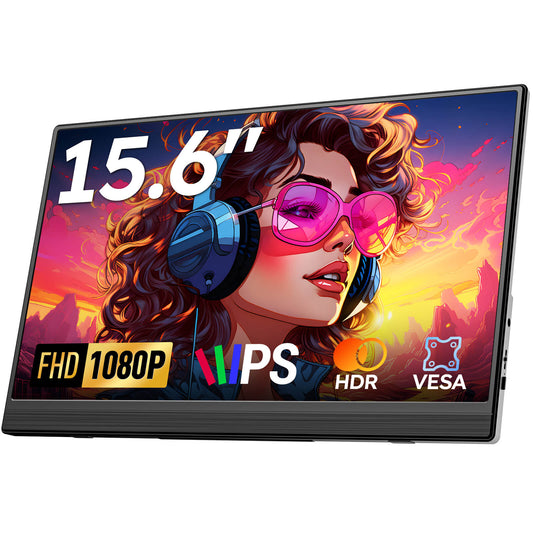
- Favpista 15.6" FHD 1080P Plug & Play Portable Monitor: Ideal matte anti-glare display for users prioritizing lightweight dual-screen spreadsheets.
- Favpista 14.1" 16:10 FHD 1200P Triple Screen Extender: Complete 3-screen laptop expansion for power multitaskers.
- Browse All Favpista Portable Displays: Explore our full collection of lightweight external monitors.
FAQ
Q:Why does touching the portable monitor click on my laptop screen?
Windows needs to be told which display is the touchscreen. Open Windows Control Panel > Tablet PC Settings, click Setup, choose Touch input, and tap the portable monitor screen to assign touch input.
Q:Can I get touch functionality through an HDMI cable?
No. HDMI only transmits audio and video signals. You must connect a secondary USB-A to USB-C cable from your computer to the monitor's Type-C port to transfer touch data.
Q:Do I need to install touchscreen drivers for Windows 11?
No. Windows 11 includes native HID touchscreen drivers that work immediately upon connecting a compatible full-featured USB-C cable.
Q:Does multi-touch gesture support work on MacBooks?
macOS natively supports single-touch click-and-drag. Multi-touch gestures like pinch-to-zoom are restricted by Apple on external displays and require third-party gesture drivers.
Q:What causes erratic ghost touches on a portable screen?
Ghost touches are usually caused by static electricity, low voltage from an underpowered USB port, or moisture on the glass. Cleaning the surface and connecting dedicated external power eliminates the issue.