What is Samsung DeX & How to Use It? Complete 2026 Workstation Guide
Samsung Galaxy smartphones pack class-leading processing speed, multi-gigabyte RAM, and advanced GPU cores. Yet, running high-performance hardware on a compact 6.7-inch glass screen inherently limits your productivity. Samsung DeX (Desktop Experience) bridges this divide, transforming your Galaxy phone into a full-fledged desktop operating system the moment you connect it to an external display or portable monitor.
With resizable floating windows, an intuitive desktop taskbar, mouse right-click menus, and keyboard shortcuts, Samsung DeX provides a genuine laptop replacement. In this updated 2026 workstation guide, we explore compatible Samsung Galaxy devices, setup methods, and how pairing DeX with a dedicated lapdock creates the ultimate mobile setup.

What is Samsung DeX?
Developed natively within One UI on Android, Samsung DeX is an integrated desktop environment. When connected to a secondary screen via USB-C or HDMI, DeX does not simply mirror your vertical phone screen. Instead, it launches an independent, landscape multi-window desktop interface reminiscent of Windows 11 or ChromeOS, allowing you to run Android applications as desktop windows.

Compatible Samsung Galaxy Devices

3 Ways to Set Up Samsung DeX
1. The Ultimate All-in-One Setup: Lapdock
While standard external displays require juggling a separate Bluetooth keyboard, wireless mouse, and power brick, a Lapdock consolidates everything into a single laptop form factor. The Favpista 14.1" Touchscreen Lapdock provides a 1080P IPS touchscreen, full keyboard, multi-gesture trackpad, and a built-in 10,800mAh battery. Connecting your Galaxy phone via a single USB-C cable powers DeX, activates touch input, and charges your phone simultaneously.
2. Direct USB-C Single-Cable Connection
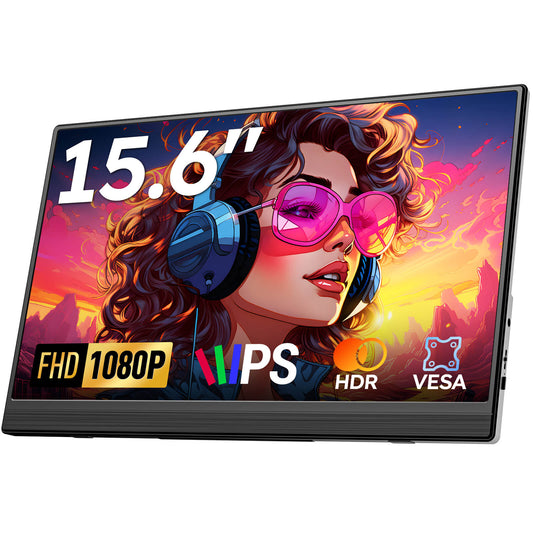
If you already have a desktop keyboard and mouse, connect your Galaxy phone directly to a Favpista 15.6" FHD Portable Monitor with a full-featured USB-C cable. Your phone's screen can be used as a precision virtual touchpad or digital sketchpad while DeX runs on the big screen.
3. Wireless DeX (Miracast Smart TVs)
Swipe down your quick settings panel and tap DeX > DeX on TV. Select your Miracast-compatible TV or wireless dongle to launch DeX without cables across the room.
Recommended Favpista Displays for Samsung DeX
- Favpista 14.1" Touchscreen Lapdock with 10800mAh Battery: Purpose-built for Samsung DeX—complete with tactile keyboard, trackpad, touchscreen, and all-day internal battery.
- Favpista 15.6" FHD 1080P Plug & Play Portable Monitor: Single-cable USB-C and Mini-HDMI external screen with vibrant IPS panel.
- Favpista 14.1" 16:10 FHD 1200P Triple Screen Extender: Advanced multi-screen extension for Windows and Mac laptop users.
- Browse All Favpista Portable Displays: Explore our full catalog of productivity displays.
FAQ
Q:Can Samsung DeX completely replace a laptop?
For web browsing, email management, Google Docs/Microsoft 365, document editing, and cloud workflows, yes. When paired with a Lapdock, Samsung DeX offers a lightweight, secure alternative to traditional Windows laptops.
Q:Can I use my phone while Samsung DeX is running on the monitor?
Yes. DeX operates independently from your phone screen. You can take phone calls, send WhatsApp messages, or check social feeds on your handheld phone while writing a document in DeX on the external monitor.
Q:Do Galaxy Z Flip phones support Samsung DeX?
No. Samsung restricts DeX functionality to Galaxy Z Fold, Galaxy S, and Galaxy Note series. Galaxy Z Flip models do not support DeX due to thermal and display routing limitations.
Q:Does touchscreen work in Samsung DeX on a portable monitor?
Yes. Samsung DeX natively supports multi-point touchscreen interaction when connected via a full-featured USB-C cable to touchscreen displays like the Favpista Lapdock.
Q:How do I prevent my phone battery from draining while using DeX?
Connect a 15W+ PD charger into the monitor's second USB-C port, or use a battery-powered lapdock like the Favpista 14.1" Lapdock, which reverse-charges your Galaxy phone during use.