What is A Mac Mini?How To Use?
The Mac mini is precisely what its name implies: a compact Mac. It is a compact and powerful desktop computer that can transform any display into a high-tech Mac. It was designed to be affordable and easily upgradeable. It offers many of the same features as larger Macs, but it is not equipped with a built-in display.
If you are interested in learning everything there is to know about the Mac mini, then keep reading. In this guide, we will discuss the features and specifications of the Mac Mini including the steps and requirements for installation, connection, and configuration, connecting a Mac mini to a monitor, as well as the many ways in which it excels above a standard personal computer.
What Is Mac Mini?
Mac mini is a small desktop computer made by Apple. It is known for its compact size and low price and is often used as a budget-friendly alternative to the larger Mac Pro or iMac computers. Unlike all-in-one desktops, the Mac mini comes without a display, keyboard, or mouse, making a lightweight portable monitor and a slim wireless keyboard and mouse combo the ideal setup for a clutter-free desk.

While this choice may seem out of the ordinary at first, the fact that the Mac mini is typically used to power another device makes it a more versatile investment. It is a popular choice for those who already have a monitor and other peripherals, and want to save space and money by using a smaller computer. Users can connect their own peripherals and use the Mac mini as the central hub of their home entertainment system or home office setup.
Advantages of Mac Mini
Here are the key reasons why the Mac mini might be a great addition to your computer setup:
Compact Size
The Mac mini is significantly smaller than other Mac computers, making it a good option for users who have limited desk space or who want to save space in their home office.
Affordable Price
The Mac mini is generally less expensive than other Mac computers, making it a good option for users who want to save money or who are on a budget.
Flexibility
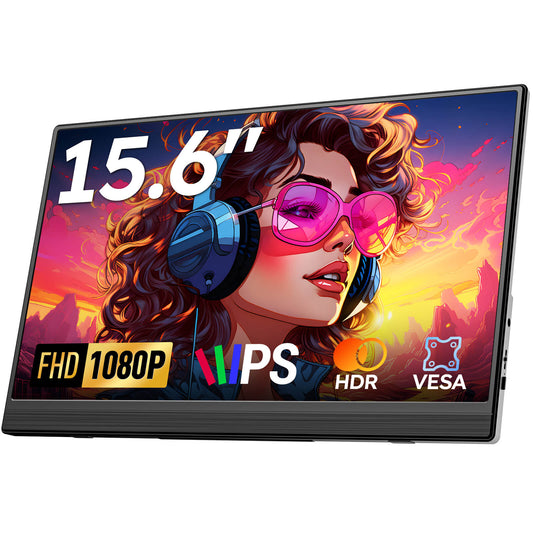
Because the Mac mini does not include built-in peripherals, users have total freedom to pair it with high-resolution 15.6" FHD IPS portable displays or dual-screen extenders to build a modular workstation tailored to their exact workflow.
Easy to Upgrade
The Mac mini is designed to be easily upgradeable, so users can easily add more memory, storage, or other components to improve its performance.
Wide Range of Uses
The Mac mini can be used for a wide range of tasks, including browsing the web, creating and editing documents, playing games, and more.
Compatibility With Other Apple Devices
The Mac mini comes with macOS, the same operating system used on other Mac computers, so you can enjoy a familiar and easy-to-use interface. This also means that it is compatible with other Apple devices, such as iPhones and iPads, which makes it easy to transfer files and use features such as AirDrop and Continuity seamlessly.
High-Performance Hardware
The Mac mini is equipped with powerful hardware, including fast processors, high-quality graphics, and solid-state storage, which makes it capable of running demanding applications and tasks.
Disadvantages of Mac Mini
While the Mac mini offers many advantages, there are a few downsides:
Lack of Built-in Peripherals
The Mac mini does not come with a built-in display, keyboard, or mouse, so users need to purchase these separately, which can increase the overall cost.
Upgrade Limitations
Although the Mac mini is designed to be upgradeable, certain components (like the processor and graphics card) may not be as easily replaceable as in traditional desktops.
Limited Expandability
Compared to high-end desktops, the Mac mini has limited expandability, making it more suitable for general users rather than professionals who need extensive hardware upgrades.
Relatively High Price
While the Mac mini is cheaper than other Mac computers, it may still be more expensive compared to similar Windows desktops.
Mac mini vs. Traditional Desktops
Conclusion
The Mac mini offers several advantages over traditional desktops, such as compactness, affordability, and high performance. However, it also has some limitations, like the lack of built-in peripherals and limited expandability. Depending on your personal needs and budget, the Mac mini could be an ideal choice. If you need a desktop computer that is easy to set up and offers reliable performance without taking up much space, the Mac mini is undoubtedly a worthwhile option to consider.
Explore More Portable Monitors
- Best Value 15.6" FHD 1080P Portable Monitor for Mac mini
- Best 15.6" Triple Dual Screen Portable Monitor for Multitasking
- Best 15.6" 1200P IPS Portable Monitor for Work and Travel
- 14.1" Touchscreen Lapdock with Built-in Keyboard & 10800mAh Battery
- Lightweight 78-Key Bluetooth Keyboard & Mouse Combo for Mac mini
FAQ
Q:Can I use a portable monitor as the main screen for Mac mini?
Yes. The Mac mini features HDMI 2.1 and Thunderbolt 4 / USB-C ports that support video output. You can connect a Favpista 1080P or 1200P portable monitor via HDMI or USB-C to create an ultra-compact, portable desktop setup.
Q:Does Mac mini supply enough power to a portable monitor over USB-C?
While Mac mini Thunderbolt ports can output power and video signal over a single USB-C cable to many portable monitors, using an external 5V/3A or PD power adapter for the monitor is recommended to ensure maximum display brightness and rock-solid stability.
Q:How many external monitors does the Mac mini support?
Standard M2/M4 Mac mini models natively support up to two displays (one up to 6K @ 60Hz over Thunderbolt, and one up to 4K @ 60Hz over HDMI). Mac mini Pro models support up to three external displays, making them ideal for multi-screen portable setups.
Q:What cables do I need to connect Mac mini to a portable monitor?
You can either use a full-featured USB-C to USB-C cable (connecting from the Mac mini Thunderbolt port to the monitor's Type-C port) or an HDMI to Mini HDMI cable paired with a USB-A to USB-C cable for power. All required high-speed cables are included with Favpista monitors.
Q:Can I connect Bluetooth keyboards and mice to Mac mini during initial setup?
Yes. Modern macOS automatically searches for Bluetooth keyboards and mice upon initial boot. Alternatively, you can use a 2.4GHz wireless combo with a USB receiver or standard wired peripherals to complete initial configuration smoothly.