What USB Cable Do I Need for A Monitor?
Complete Guide to USB Cables for Portable Monitors
Understanding connectivity, compatibility, and how to choose the right setup for your Favpista portable monitor
What USB Cable Do I Need for a Monitor?
In today's flexible work and lifestyle trends, a portable monitor is no longer a nice-to-have — it's essential. Whether you're a remote worker, frequent traveler, student, or creative professional, an extra screen can boost productivity, creativity, and entertainment on the go.
Among the many options, Favpista portable monitors stand out for their sleek design, exceptional image quality, and effortless setup. But before you get started, a few technical questions often pop up: What USB cable do I need for a monitor? Does my device's USB-C port support display? Can USB 3.0 be used for video output? Let's walk through everything you need to know — and why Favpista is the perfect companion for it.
Why Choose a Favpista Portable Monitor?
Favpista portable monitors combine premium design with practical functionality, offering versatile connectivity options that work seamlessly with your existing devices.
1. Ultra-Thin and Lightweight Design
Favpista's laptop models, such as the DR1563, are designed to be thin, stylish, and portable, typically weighing around 1.5 pounds. They are perfect for fitting into a backpack or carry-on luggage.
2. Superior Visual Experience
Favpista monitors feature Full HD, 2K, or even 4K resolution, vibrant color accuracy (up to 99% sRGB), and wide viewing angles — whether you're editing photos, gaming, or watching movies, every detail pops.
3. Universal Compatibility
Finding the right connection shouldn't feel like a puzzle. When you invest in a portable setup, you want a seamless 'one-cable' experience that just works. We have optimized our hardware to be perfectly compatible with the high-quality Favpista monitor cables included in every box, allowing for a clutter-free workspace.
Thanks to versatile USB-C and Mini HDMI ports, Favpista portable monitors work seamlessly with laptops, smartphones, gaming consoles like the Nintendo Switch and PS5, and even cameras. By utilizing these specialized cables, you can transmit power, data, and 2.5K video signals simultaneously through a single port, effectively eliminating the mess of tangled wires that usually plagues a multi-monitor desk setup.
Among all these strengths, some models lean more toward productivity, while others push performance further. If gaming is your priority, one model clearly stands out.
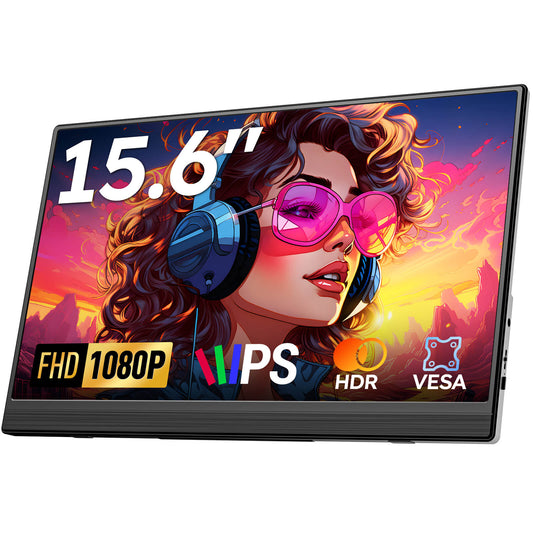
15.6-inchdisplay: A truly excellent portable gaming monitor
It features a 15.6-inch display, which is quite large for a portable monitor. It delivers clear and detailed images for both gaming and everyday use.
The 15.6-inch portable monitor is ideal for users who are frequently on the go. For example, students living in dorms, business professionals who travel frequently, or anyone who wants an external display for their PS5 or Nintendo Switch.
The true beauty of a modern portable workspace lies in its simplicity, and the Type-C to Type-C connection perfectly embodies this. If your laptop or smartphone supports DisplayPort Alt Mode, this single cable becomes a powerful bridge, simultaneously transmitting power, high-speed data, and crisp video signals. With a high-quality Type-C to Type-C cable, you can eliminate bulky power adapters and messy HDMI cables, transforming a cramped coffee shop table into a professional dual-screen workstation in seconds.
What is USB?
USB (Universal Serial Bus) is a standardized technology that allows different electronic devices to connect, transfer data, and deliver power.
Since its creation in the 1990s, USB has become the universal language between computers, monitors, smartphones, external drives, and more. When connecting a portable monitor like Favpista, understanding how USB works is crucial to ensuring seamless display and power transmission.
At its core, USB technology handles three main tasks:
- Power Delivery — charging or powering devices.
- Data Transfer — exchanging files, signals, and commands.
- Display Output — sending video and audio signals (only certain USB standards).
Not all USB ports and cables are equal, which is why knowing the right type matters when setting up your Favpista monitor.
What Types of USB Are There?
Over time, USB technology has evolved significantly. Here's a quick breakdown of the main types you might encounter:
1. USB-A
The traditional rectangular connector found on most older laptops, desktops, and chargers.
Usage: Mainly for power and data transfer.
Does not natively support video output without additional adapters.
2. USB-B
A bulkier, square-shaped connector mostly used for printers and older peripherals.
Usage: Power and data transfer. Rarely involved in portable monitor setups.
3. USB-C
The modern standard — small, reversible, and highly versatile.
Usage: Supports power delivery, high-speed data transfer, and video output through DisplayPort Alt Mode.
Essential for connecting most new portable monitors like Favpista with a single cable.
Important: Not every USB-C port supports video — make sure your device's USB-C has DisplayPort Alt Mode capability.
4. USB 3.0 / 3.1 / 3.2
These numbers refer to USB generations, not connector shapes.
Usage: Faster data transfer rates (up to 5Gbps for 3.0, 10Gbps for 3.1, and 20Gbps for 3.2).
Important for performance but only support video if combined with the right cable and port type (like USB-C with DisplayPort Alt Mode).

Visual comparison of different USB connector types
What USB Cable Do I Need?
The first step is understanding the right connection. Most Favpista monitors support multiple connection types to ensure hassle-free setup:
USB-C to USB-C Cable
If your device supports DisplayPort Alt Mode, a single USB-C cable can deliver both power and video. This is the cleanest and most efficient setup.
USB-A to USB-C + Mini HDMI
If your device's USB-C doesn't support video output, you'll power the monitor with USB-A to USB-C and send video via Mini HDMI to HDMI cable.
Favpista includes all necessary cables in the box, so you're ready to connect immediately without extra purchases.

Typical connection setup for Favpista portable monitors
How Do I Identify If My USB-C Port Supports Display?
Before plugging in, it's important to check if your device's USB-C port supports video output, known as DisplayPort Alt Mode. Here's how:
- Look for symbols: A DisplayPort (⎉) or Thunderbolt (⚡) symbol next to the USB-C port often indicates video capability.
- Check the specs: Refer to your device's technical documentation.
- Search online: A quick search of your device model plus "DisplayPort Alt Mode" can confirm compatibility.
If your device supports it, congratulations - you can enjoy true one-cable operation with your Favpista monitor!
Critical Note: One of the most common frustrations users face is a black screen or flickering, which often happens when trying to use a standard smartphone charging cable for video output. It is important to understand that not all USB-C cords are created equal. This is why using the official Favpista monitor cables is so critical; they are specifically engineered to support high-bandwidth video protocols and DisplayPort Alt Mode.
Can USB 3.0 Be Used for Display?
Here's where it gets a bit tricky: standard USB 3.0 ports (often colored blue) do not transmit video signals natively. To connect through USB 3.0, you would typically need a DisplayLink adapter, which Favpista monitors don't require. Instead, Favpista units are optimized for:
- USB-C with DisplayPort Alt Mode for direct video.
- Mini HDMI for devices without compatible USB-C.
If your laptop only has USB 3.0, simply use the Mini HDMI for video and USB-A to USB-C for power — the setup still stays simple and effective.
Do I Need a Specific USB-C Cable for a Monitor?
Absolutely. It is a common misconception that every cable with a reversible connector can handle a monitor's demands, but the reality is that the specific Type-C to Type-C cable you use makes all the difference. For Favpista monitors (and portable monitors in general), you need a USB-C cable that supports:
- USB 3.1 Gen 2 (or higher)
- DisplayPort Alt Mode
The high-quality USB-C cable included with Favpista monitors is already optimized for 4K video, fast data transfer, and stable power delivery. If you ever need a replacement, look for cables labeled "video capable" or "4K display compatible."